
Overview
The Physician Groups Explore page displays metrics for medical groups — physician practices and organizations identified by a shared National Provider Identifier (NPI) — that are potential patient sources for hospice in the states your company has contracted to see. Where the Physicians Explore page shows you individual providers one NPI at a time, the Physician Groups Explore page surfaces the organizational layer above: the practice or medical group that may employ or affiliate with many individual physicians under one identity.
 Understanding physician groups alongside individual physicians gives your sales team two lenses on the same market. A group relationship can open doors to multiple physicians at once — and it survives the individual transitions that single-NPI relationships often don't.
 For an overview of the features and tools shared across all Explore pages, see The Explore page. For information on the filters for the Physician Groups Explore page, see HOS - Physician Groups Explore page Filters.
 Let's get Oriented
You're on the Physician Groups Explore page — to get here, open the Explore page and click Physician Groups in the tab bar at the top (it sits alongside Physicians, Facilities, and the other provider types). The table lists medical groups — physician practices with a shared NPI — that are active referral sources for hospice in your contracted states. Click any group's name in the table to open its Analyze page.

In this Article
- Understanding the Metrics — definitions for every column in the table
- Physicians Preview Panel - A dropdown that shows a list of physicians for the physician group in the row
- Putting the Data to Work — how to use physician group data to build and prioritize your pipeline
Understanding the Metrics
The following image shows the column headers from the Physician Groups Explore table. Because the table is wide, the headers have been sliced and stacked to make them easier to read. Click the image to enlarge it.
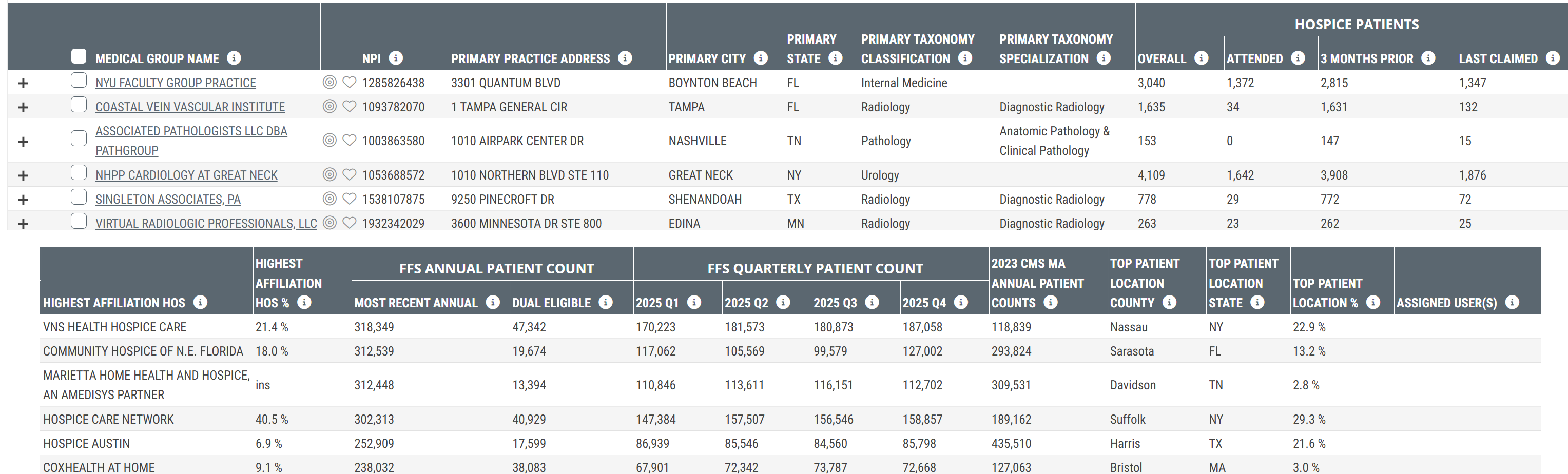
| Metric | Description | |
|
Favorites/Targets
|
Click on these icons to make the listed organization a Favorite (heart icon) or a Target (target icon). | |
| Medical Group Name | The name of the listed physician group as listed in the NPI registry. Click the group name to open the Physician Group Analyze page for that group. | |
| NPI |
The National Provider Identifier for the listed physician group.
|
|
| Primary Practice Address |
The street address for the listed physician group's primary practice location, as registered in the NPPES NPI registry.
|
|
| Primary City | The city ofthe listed physician group's primary practice location. | |
| Primary County | The county of the listed physician group's primary practice location. | |
| Primary ZIP Code | The ZIP code of the listed physician group's primary practice location. | |
| Primary State | The state of the listed physician group's primary practice location. | |
| Primary Taxonomy Classification | The broad specialty classification for the listed physician group as registered in NPPES (for example: Radiology, Internal Medicine, Multi-Specialty). | |
| Primary Taxonomy Specialization | The more specific specialty within the primary taxonomy classification. | |
| Hospice Patients | Overall | The count of distinct Medicare FFS hospice patients who were treated by physicians in the listed physician group during the one-year reporting period, across all claim relationship types - (Attended, 3 Months Prior, or Last Claimed). |
| Attended | The count of distinct Medicare FFS hospice patients who were treated by physicians in the listed physician group who billed a Medicare claim during the patient's hospice episode (Attended). | |
| 3 Months Prior | The count of distinct Medicare FFS hospice patients who were treated by physicians in the listed physician group who billed a Medicare claim in the three months prior to the patient's hospice admission. | |
| Last Claimed | The count of distinct Medicare FFS hospice patients who were treated by physicians in the listed physician group filed the last Medicare claim before the patient's hospice admission. | |
| Highest Affiliation HOS | The name of the hospice provider that received the highest percentage of the listed physician group's hospice patients during the reporting period. | |
| Highest Affiliation HOS % | The percentage of the listed physician group's hospice patients who were served by the highest-affiliated hospice provider. A high percentage indicates the group sends most of its hospice referrals to a single provider. | |
|
FFS Annual Patient Count
|
Overall | The total count of distinct Medicare FFS patients associated with physicians in the listed physician group during the one-year reporting period, across all Medicare claim types - (Attended, 3 Months Prior, or Last Claimed). |
| Dual Eligible | The count of patients in the group's annual FFS population who are also enrolled in Medicaid (dual-eligible beneficiaries). | |
| FFS Quarterly Patient Count — 20YY Q# |
The count of distinct hospice patients associated with the listed physician group during the identified quarter. Four rolling quarters are displayed.
|
|
| 20YY CMS MA Annual Patient Counts |
The count of Medicare Advantage patients associated with the listed physician group, as reported in the most recent available CMS MA data. The year in the column header updates when new CMS MA data is published. The latest year of data available for Medicare Advantage metrics is shown at the top right of every page in Trella Insights. (see image)
|
|
| Top Patient Location County | The county of residence for the largest share of the listed physician group's hospice patients during the one-year reporting period. | |
| Top Patient Location State | The state of residence for the largest share of the listed physician group's hospice patients during the one-year reporting period. | |
| Top Patient Location % | The percentage of the listed physician group's hospice patients associated with the top patient county and state. | |
| Assigned User(s) | The user(s) from your company currently assigned to the listed physician group. | |
 - not selected
 - selected
 Provider address information in Trella reflects the NPPES registry and is updated on a quarterly schedule.
 |
Physician Preview Panel
When you click on the "+" plus sign to the left of any physician group's name, the physician preview panel opens that displays a list of all physicians associated with the selected physician group.

Understanding the Metrics
Metric Name |
Description |
| Name/NPI | The physician's name and NPI, as listed in the CMS NPI Registry. |
| Hospice Patients (Overall) | The count of distinct Medicare FFS patients treated by the listed physician regardless of the physician group who received hospice services (Attended, 3 Months Prior, and Last Claimed patients) during the one-year reporting period. |
| Taxonomy Specialty |
Physician's self-reported primary specialty; from the CMS NPI Registry. |
| Taxonomy Sub-specialty | Physician's self-reported primary sub-specialty; from the CMS NPI Registry. |
| State/City/County/ZIP Code | The state, city, county, and ZIP code for the listed physician's primary practice address; from the CMS NPI Registry. |
Putting the Data to Work
Find your highest-volume groups first. Sort by Hospice Patients — Overall to rank physician groups in your market by hospice patient volume. The groups at the top are already generating the referral activity — your goal is to understand where those patients are going and position your agency in that conversation.
Understand concentration before you compete. Check the Highest Affiliation HOS and Highest Affiliation HOS % columns together. A group with a very high affiliation percentage sends most of its hospice referrals to a single provider. A group with a low percentage is splitting referrals and is more open to a new relationship.
Use location data to qualify your pipeline. The Primary Practice Address and Top Patient Location columns tell you where a group practices and where their patients live. A group whose patients cluster in your service territory is a real opportunity.
Connect group volume to individual outreach. Click a group name to open the Physician Group Analyze page — where you'll find the individual physicians in that group, their referral destinations, and patient population data. Use the group to set your priority; use the Analyze page to plan your approach.
Track your growing relationships. Use Favorites to flag groups you are actively working. Use Targets to flag groups you are pursuing.
|